Docking Stations That Replace Three Cables with One
A docking station is not sexy gear. It's also one of the highest-ROI items in a home office. Here's which ones actually work.
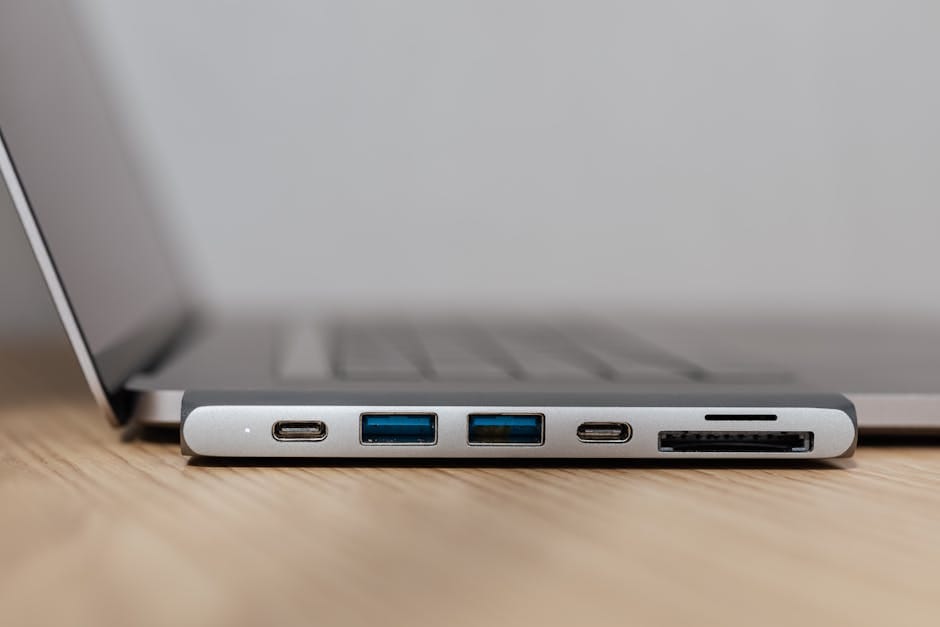
There's a specific kind of small frustration that defines modern remote work. You sit down at your desk, plug in the laptop's charger, then the monitor cable, then the USB cable to the keyboard and mouse hub, then the Ethernet adapter. Four cables. Every morning. When you leave, four cables to unplug. The laptop becomes an appliance that requires assembly.
A proper docking station fixes this entirely. One cable from laptop to dock. Everything else stays permanently connected to the dock. Plug in, unplug, walk away. The moment you experience this workflow, you wonder why you spent years doing it the hard way.
Here's which docking stations deliver on the promise and which ones don't. The category is full of disappointments — docks that claim dual 4K displays but deliver with stuttering, docks that charge the laptop slowly, docks that overheat under sustained use.
The premium pick: CalDigit TS4 Thunderbolt 4 Dock — $379
The best docking station money can buy in 2026. 18 ports, including Thunderbolt 4 output for displays or peripheral chaining, five USB-A ports, three USB-C ports, 2.5 Gigabit Ethernet, SD card reader, and 98W power delivery.
What it does right: reliably supports two 4K monitors at 60Hz simultaneously via DisplayPort or HDMI. Charges a MacBook Pro at full 98W under any workload. The 2.5 Gigabit Ethernet is noticeably faster than Wi-Fi for file transfers and cloud backups. Firmware is updated regularly by CalDigit.
The TS4 has been on my desk for two years. Never a glitch. Never an overheating incident. The build quality is noticeably higher than competitors at similar prices.
The Windows-specific pick: Dell WD22TB4 — $279
If you use a Windows laptop with Thunderbolt 4 support, the Dell WD22TB4 is the right answer. Dual DisplayPort outputs for dual 4K at 60Hz. USB-A ports, USB-C, Gigabit Ethernet, and 90W power delivery.
What it does right: specifically tuned for Dell and compatible Windows laptops. Firmware updates are reliable and happen through Dell's standard update channels. Plays nicely with Dell's display management software.
Works with Thunderbolt 4 laptops from any manufacturer — it's not Dell-exclusive. Recommend specifically for Dell users because of the ecosystem integration.
The budget pick: OWC Thunderbolt Hub — $179
For single-monitor setups or Thunderbolt daisy-chaining configurations, the OWC Thunderbolt Hub is the value play. Three additional Thunderbolt 4 ports plus one USB-A. Bus-powered (no external adapter needed for the hub itself, though downstream devices need their own power).
What it's good for: expanding a laptop with a single Thunderbolt 4 port into multiple ports. Not a full docking station — no Ethernet, no SD card reader, limited USB-A. But excellent for what it does.
Use case: the hub extends one Thunderbolt port. Plug a Thunderbolt monitor (with USB-C and other ports built in) into one of the hub's ports, get even more ports through the monitor. Fully Thunderbolt-native chain.
The USB-C pick (no Thunderbolt): Plugable USBC-6950M — $169
If your laptop doesn't support Thunderbolt, but has USB-C with DisplayPort alt-mode, the Plugable USBC-6950M is the right answer. DisplayLink-based dual 4K output, six USB-A ports, Gigabit Ethernet, HDMI and DisplayPort outputs.
Caveat: DisplayLink-based docks use software-based display output that handles motion differently than native video output. Some users notice slightly softer text or occasional frame drops during video playback. For office work, it's indistinguishable. For video editing or gaming, native Thunderbolt is better.
Works with almost every USB-C laptop made after 2018. Much broader compatibility than Thunderbolt-only docks.
What makes a good dock
Power delivery wattage
Your laptop's power consumption determines minimum wattage. MacBook Air: 45-60W. MacBook Pro: 90-140W. Typical Windows ultrabook: 65W. Typical Windows gaming laptop: 100-180W (which no dock handles; gaming laptops need their own adapter).
A dock that delivers only 65W to a MacBook Pro will charge the laptop slowly when the CPU is busy. Battery will drain during intense work despite being "plugged in." Match dock wattage to laptop requirements.
Display support
Single 4K at 60Hz: easily handled by any current dock.
Dual 4K at 60Hz: handled by Thunderbolt 3/4 docks natively. Handled by DisplayLink docks in software. Native is better; DisplayLink is acceptable.
Dual 4K at 120Hz or triple monitor setups: only Thunderbolt 4 docks, with specific bandwidth calculations. Check the dock's spec sheet against your exact monitor configuration.
Ethernet speed
1 Gigabit Ethernet is the baseline. 2.5 Gigabit or 10 Gigabit Ethernet is a bonus for fast internal networks or NAS file servers. For most users, 1 Gigabit is fine.
USB ports
Count the USB devices plugged into your current setup: keyboard, mouse hub, webcam, printer, hard drives. Then add 2 for future devices. That's your minimum USB port requirement.
Modern docks offer 6-12 USB ports of various types. More is usually better unless you're paying a significant premium for ports you won't use.
The HDMI vs DisplayPort question
Both work. Both handle 4K at 60Hz. The difference is in max capability — DisplayPort 1.4 handles 4K at 120Hz, while HDMI 2.1 handles the same. For practical purposes at 4K 60Hz, either is fine.
Some monitors only accept HDMI, others only DisplayPort. Check your monitor and pick a dock with the right output. Most good docks have both.
What to skip
Skip docks under $100 that claim dual 4K support. The DisplayLink chip at that price point either compresses video (you'll see it as banding or stutter) or downgrades to 30Hz refresh (noticeable as lagginess).
Skip docks with proprietary power connectors rather than USB-C. The proprietary connector limits compatibility and if the proprietary cable fails, replacement is expensive.
Skip docks without surge protection. The better docks include basic surge/ESD protection that prevents laptop damage from power events. Cheaper docks pass any surge directly to your laptop.
Skip docks from manufacturers you've never heard of with dozens of Amazon reviews that all sound similar. The review farms are aggressive in this category. Stick with CalDigit, OWC, Dell, HP, Lenovo, Plugable, and Kensington.
The setup routine
Once you have a proper dock, the daily routine becomes:
- Connect laptop via one cable to dock. Laptop starts charging, displays light up, keyboard/mouse/Ethernet connect.
- Work for the day.
- Disconnect the one cable when leaving. Laptop disconnects cleanly, switches to Wi-Fi, displays blank on the dock side.
Total transition time: about 3 seconds.
Before a dock, the same transition was about 30 seconds of plugging in or unplugging. Across a workday with one or two transitions, the dock saves 60 seconds. Across a year, it's approximately 4 hours of recovered time. Across a career, days.
Small wins compound. The dock is one of the highest-ROI purchases a knowledge worker can make.
Cable management matters
A dock is only as clean as the cables leaving it. All your cables terminate at the dock now — monitor cables, Ethernet, USB peripherals, power — which means the dock's location matters.
Mount the dock behind the monitor if possible. Cables are hidden. Only one cable emerges to reach the laptop when connected.
Use cable ties or velcro straps to bundle cables cleanly. Don't let them cascade off the desk — they catch on your knees, collect dust, and annoy anyone cleaning the desk.
A $15 cable management solution from Ikea or Amazon turns a dock into a clean desk upgrade instead of just a technical one.
The travel dock question
If you regularly work from different locations — home, office, client site — consider a small travel dock in addition to the main dock.
The Anker 555 USB-C Hub at $45 is portable (fits in a laptop bag) and adds HDMI, USB-A, and SD card reader. Not a full docking station, but enough for ad-hoc setups.
Leave the CalDigit TS4 at home. Travel with the Anker hub. Two-dock strategy covers all scenarios.
The upgrade path
If you currently have no dock: start with a proper Thunderbolt 4 dock. CalDigit TS4 if budget allows ($379), OWC Thunderbolt Hub ($179) as the step-down option.
If you have an older USB-C hub (not Thunderbolt): upgrade if you've added more devices than it supports, or if you specifically need dual 4K. Otherwise, it's probably fine.
If you have multiple displays already: consider one of the displays with integrated USB-C hub functionality. Dell's UltraSharp U3425WE has a built-in KVM and USB hub. This can replace a separate dock for some users.
The reliability factor
A docking station sits between your laptop and everything else. When it fails, everything stops working. Reliability matters more than in most peripherals.
The best docks (CalDigit, OWC) rarely fail. The worst docks (no-name brands) fail regularly.
Buy quality once. Don't learn this lesson the hard way when your meeting-important presentation can't display because the $80 dock you bought decided today was the day.
Docking stations are the invisible infrastructure of a good home office. You buy one, set it up, and forget about it. Nothing about the purchase is exciting. The payoff is years of friction-free desk transitions. That's worth the $300-400 investment easily, particularly for anyone working from home full-time or hybrid. Get the CalDigit TS4. Be happy you did.