The Logitech MX Master 3S vs Razer Pro Click: Which One Belongs on Your Desk
Both mice are marketed as productivity tools. After six months with each, here's which one actually deserves your desk space.
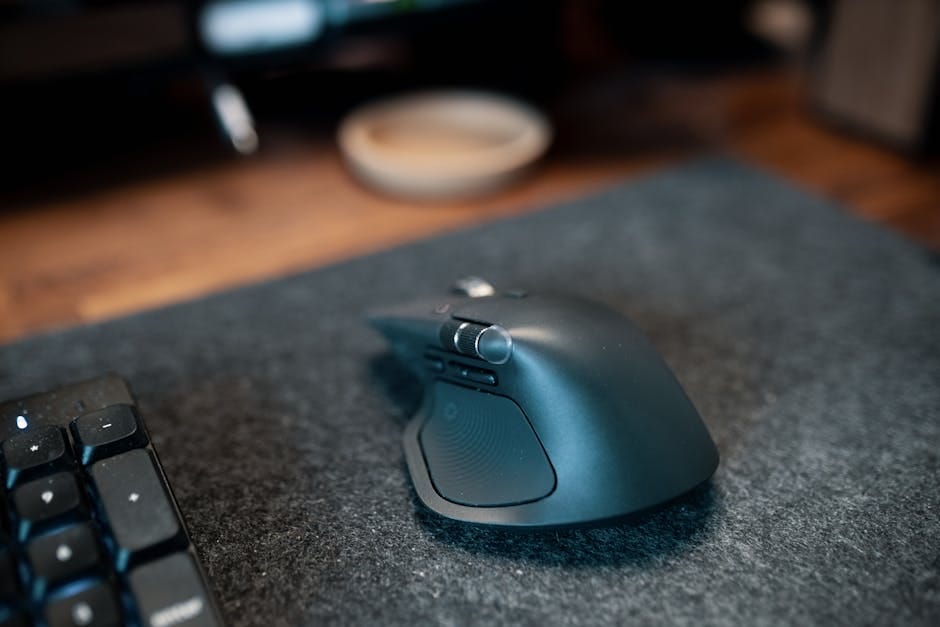
The Logitech MX Master 3S has been the default recommendation for productivity mice for five years. The Razer Pro Click — and its newer Pro Click V2 — was Razer's attempt to convince productivity users that a gaming brand could build a work mouse. I've used both for extended periods. Here's the honest comparison, because most reviews are written by people who tried each for a week and posted.
The short version: the MX Master 3S is the better mouse for most work. The Razer Pro Click has specific advantages that matter in specific workflows. If you buy based on the headline spec comparison, you might buy the wrong one. Let me walk through what actually differs in daily use.
Build quality and feel
Both mice are well-made. Neither feels cheap. The MX Master 3S has a softer-touch plastic that feels slightly more premium. The Razer Pro Click has a firmer plastic with a more machined feel. Both survive heavy daily use without visible wear.
Weight: MX Master 3S is 141 grams. Razer Pro Click is 106 grams. That's a significant difference. The heavier MX Master feels more planted; the lighter Razer is more agile. For quick cursor moves across large displays, the lighter Razer is faster. For steady work on detailed tasks, the Logitech feels more stable.
The ergonomics differ. The MX Master has a pronounced thumb rest that supports the whole base of the thumb. The Razer Pro Click has a subtler thumb rest. If you grip the mouse with palm fully on it (palm grip), the MX Master is more supportive. If you grip with fingertips (fingertip grip) or claw the mouse (claw grip), the Razer fits better.
Neither hand size dominates. For hands 7 inches or longer from wrist to fingertip, the MX Master is the better fit. For smaller hands, the Razer can be more comfortable.
Buttons and scroll
The Logitech's MagSpeed scroll wheel
The MX Master's horizontal scroll wheel is the defining feature. It switches between ratcheted (step-by-step for precise work) and free-spinning (whoosh through long documents) automatically or via a mode button. The horizontal thumb wheel is for side-scrolling, which is particularly useful in spreadsheets and timeline-based applications like DAWs and video editors.
This scroll wheel is what makes the MX Master hard to replace. The free-spin mode lets you scroll through a 10,000-line CSV in a second. The ratcheted mode gives you perfect precision. The switch between modes is automatic — flick fast and it goes free, scroll slowly and it ratchets.
The Razer's tactical wheel
The Razer Pro Click has a simpler scroll wheel. It's ratcheted only, with one click of horizontal tilt per direction. No free-spin. No horizontal wheel.
This is a real loss for spreadsheet users, CAD users, video editors, and anyone who regularly navigates wide documents. The MX Master's horizontal wheel genuinely changes how you work with these applications.
Programmable buttons
Both mice have 5+ programmable buttons beyond left/right click. The Logitech's software (Logi Options+) is mature and lets you set per-application profiles, which is essential — the button that means "back in browser" should mean "undo in Figma."
The Razer's Synapse software is more targeted at gaming configurations but does support application-specific profiles. It's not as refined as Logi Options+, particularly for Mac users.
Wireless and battery
MX Master 3S: Uses Logitech's Unifying or Logi Bolt dongle, also supports Bluetooth Low Energy for pairing with phones and tablets. 70 days battery life on a charge. USB-C charging.
Razer Pro Click: 2.4 GHz wireless via included dongle, plus Bluetooth. Battery life of up to 400 hours (Razer's claim) — in practice about 250 hours of active use.
The Logitech's Flow feature is the killer feature here. With Logi Options+ installed on two computers, you move the cursor from one to the other by moving to the edge of the screen. Files copy seamlessly between them. It's like having one mouse and keyboard control two machines.
The Razer doesn't have an equivalent. If you use two Macs, or a Mac and a Windows laptop, the Logitech's Flow is genuinely transformative. I switch between a personal Mac and a work Mac constantly, and the Flow feature saves me several minutes every day.
Click feel and switches
The Razer Pro Click uses Razer Optical Mouse Switches — switches that use light rather than metal contact to register clicks. They're rated for 70 million clicks (versus 20 million for typical mechanical mouse switches). They also feel different — lighter, with less tactile feedback.
The MX Master 3S uses traditional mechanical switches with a firmer feel and more pronounced click.
For people who click heavily — designers using selection tools, programmers browsing code — the Razer's lighter switches are less fatiguing. For people who don't notice clicks after an hour of work, it doesn't matter.
Noise level: the MX Master 3S is specifically designed to be quiet. The "Silent Click" rebranding for the 3S version reduced click noise significantly over the older 3. The Razer is slightly louder but still office-appropriate.
Software
Logi Options+ (the app for Logitech mice) is one of the better mouse software packages on the market. It has app-specific profiles, cloud sync between devices, and works on Mac and Windows.
Razer Synapse is more focused on gaming. Has improved for productivity use over time but still feels like a gaming tool adapted for work. The Mac version is noticeably less polished than the Windows version.
If you're on Windows and use multiple mice or keyboards from the same brand, both work fine. On Mac, Logitech has a meaningful advantage.
The specific verdict
Buy the Logitech MX Master 3S if:
- You work across multiple computers and want Flow's seamless switching.
- You use spreadsheets or any application with horizontal navigation.
- You prefer heavier, more planted mouse feel.
- You want the most mature productivity software.
Buy the Razer Pro Click if:
- You have smaller hands and find the MX Master uncomfortable.
- You click frequently and want lighter-feel switches.
- You prefer a lighter mouse for fast cursor movement.
- You specifically don't need Flow's cross-device features.
In both cases, the mouse is better than 90% of what's on Best Buy shelves. The comparison is between two strong products.
What to skip
Skip Apple's Magic Mouse for productivity. The low profile causes wrist strain during long sessions. The charging port is on the bottom, which is genuinely ridiculous. The scroll surface is clever but limited. Fine for occasional use, not for all-day work.
Skip any mouse under $30 for productivity work. The sensor, the switches, and the ergonomics all suffer. You'll replace it within a year.
Skip vertical mice unless you've developed actual wrist problems. The ergonomic benefit is real for RSI cases but the general adaptation is significant and most people would benefit more from a better chair.
Skip trackballs for general productivity. They're excellent for specific users who love them, but the learning curve is real and most users stay on regular mice anyway.
The non-obvious factor
You will keep using whichever mouse is on your desk. A $100 mouse that isn't perfectly suited to you is still vastly better than the $15 mouse you replaced. Don't obsess over this choice. The Logitech MX Master 3S is the safer default; the Razer Pro Click is the right choice if you specifically need what it offers.
Both of these mice will outlast the laptop they're attached to. Buy one and forget about mice for five years. That's the real outcome that matters.
A small buying tip
Both of these mice go on sale regularly. The MX Master 3S is $99 MSRP but frequently $79-85 on sale. The Razer Pro Click is $99 MSRP and drops to $69-79 during Razer sales. Neither should be paid full price for unless you need one immediately.
The mouse is a tool you touch every 30 seconds while working. Getting this one right pays back in quality of daily experience for years. A $30 mouse is a false economy that you feel every time you use it.
After six months with each, I'm back on the MX Master 3S daily because of Flow and the horizontal scroll wheel. The Razer Pro Click sits in a drawer as a backup. Your use case may differ — a daily tester in a role without multi-computer switching and without spreadsheet work might prefer the lighter Razer. Either way, you're buying a tool that does its job and then disappears from your attention. That's the whole goal.