Mechanical Keyboards for People Who Type All Day
The mechanical keyboard market is for gamers and hobbyists. Here's what to buy if you just type for a living.
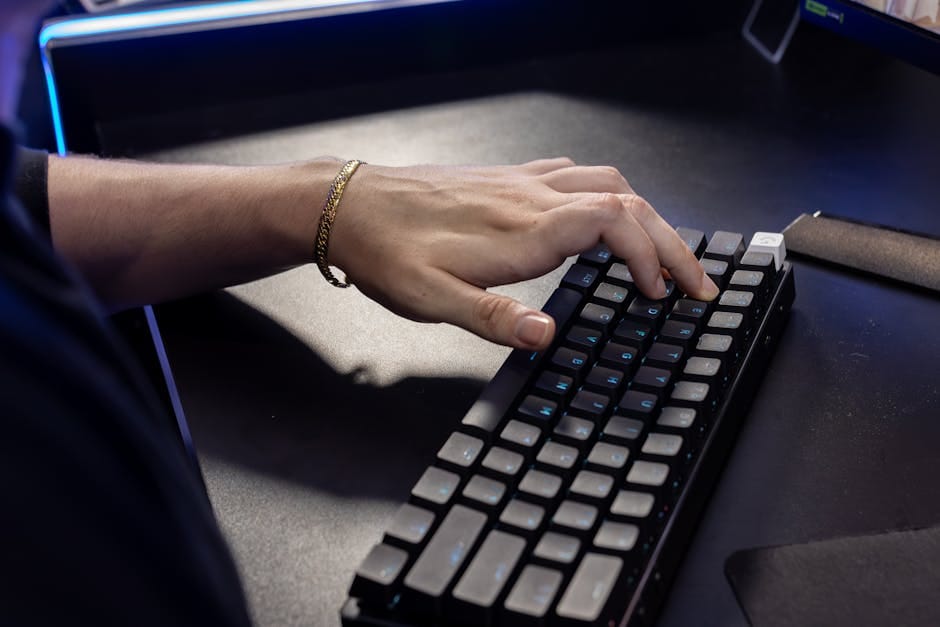
Most mechanical keyboard reviews are written for hobbyists who obsess over switch lubrication, keycap profiles, and case resonance. If you type for a living — emails, documents, reports, code — you don't need that education. You need a keyboard that doesn't fatigue your hands after eight hours, doesn't wake up your spouse during a late night, and doesn't look like a gaming accessory on your desk.
This is the no-nonsense guide. Which mechanical keyboards are genuinely better for daily typing, which to skip, and why the "gaming keyboard" most people buy first is the wrong choice for real work.
Do you actually need a mechanical keyboard?
Honest answer for most office workers: no. The Logitech MX Keys S at $109 is a scissor-switch keyboard that's excellent for typing, nearly silent, and backlit for dim rooms. If your main requirement is "types well for long sessions without bothering anyone," the MX Keys delivers.
Mechanical keyboards matter when:
- You type more than 6 hours a day and want tactile feedback that reduces finger fatigue.
- You're a programmer, writer, or data entry worker who benefits from precise keystroke registration.
- You appreciate the physical interaction with a tool you use thousands of times daily.
If none of these apply, save the money. A mid-range scissor-switch keyboard is genuinely enough.
The mechanical keyboards that make sense for work
Keychron Q-Series (Q1, Q2, Q3) — $179-229
Keychron has become the default recommendation for anyone wanting a quality mechanical keyboard without custom-building one. The Q-series is aluminum-cased, fully programmable via QMK/VIA, and ships with hot-swappable switches so you can try different feel without re-soldering.
Q1 is the 75% layout (compact but with arrow keys and function row). Q3 is the tenkeyless (full function row, no numpad). Q2 is between them. For typing work, the 75% layout is the sweet spot — compact enough to leave desk space, complete enough that you don't miss keys.
The Q1 Pro adds Bluetooth connectivity and a built-in battery for wireless use. $199. This is the version I own and use daily. Three years in, still flawless.
Logitech MX Mechanical Mini — $149
For anyone who wants a mechanical keyboard but needs Logitech's ecosystem features (Flow, easy device switching, cross-platform compatibility), the MX Mechanical Mini is excellent. Low-profile mechanical switches that are closer to scissor feel than full mechanical. 75% layout.
The MX Mechanical is basically a compromise product that's better than full scissor-switch but more office-appropriate than full mechanical. For typing work where you occasionally need to pair with a phone or iPad, the Logitech ecosystem integration is the selling point.
HHKB Professional Hybrid Type-S — $385
The legendary typing keyboard among serious professionals. Topre capacitive switches, 60% layout, no arrow keys (you use Fn+key combinations). The Type-S variant is silent. The Hybrid has Bluetooth for wireless use.
This is expensive and requires adaptation — the layout is uncompromising. But for typists who put in the two weeks to learn it, the HHKB delivers an experience nothing else does. Typing on an HHKB after using it for a year makes every other keyboard feel slightly wrong.
Only recommend to people who type 8+ hours a day and are willing to customize a layout to their work. Not a mainstream pick.
Varmilo VA87 or VA108 — $149-199
If you want a classic, office-appropriate aesthetic — white with pastel accents, or all-black with subtle branding — Varmilo builds some of the most attractive office-appropriate mechanicals. Cherry MX switches (not hot-swappable on most models), PBT keycaps that wear nicely, and a reasonable price.
The VA87 is a tenkeyless (no numpad). The VA108 is the full-size variant. Both look like furniture pieces, not gaming peripherals.
Switches: what to pick for typing
Mechanical switches fall into three broad categories based on feel:
- Linear switches (red colors): smooth all the way down, no tactile bump. Common for gaming because they feel consistent and respond fast. For typing, they lack feedback, which some writers find fatiguing.
- Tactile switches (brown colors): a subtle bump about halfway down the keystroke. Feedback without loudness. The default recommendation for typing work.
- Clicky switches (blue colors): the bump plus an audible click. Satisfying to type on. Extremely annoying to anyone in the same room. Not recommended for any shared space.
For office use, tactile is almost always the right choice. Popular options include Cherry MX Brown, Gateron Brown, Kailh Box Brown, and premium options like Zealios tactile or Holy Pandas.
If you work in a shared office or on video calls, look specifically for "silent" variants — Cherry MX Silent Red (linear) or Silent Brown (tactile) reduce noise significantly without completely eliminating feedback.
The case of linear switches for typing
Some typists prefer linear switches because they feel smoother and faster. This is a legitimate preference, not wrong. Try typing on a demo keyboard at a store before deciding. Your muscle memory and finger physiology affects which switch type feels better.
Layout choices
Full-size keyboards (104 keys including numpad) are what most office workers know. They're also the largest, taking up significant desk space.
Tenkeyless (TKL, 87 keys) removes the numpad. For anyone who rarely does heavy numeric data entry, TKL is strictly better — more mouse space, less reach to the mouse.
75% (around 82 keys) compresses the function row and arrow cluster into a tighter block. Good compromise for compact desks.
65% (around 68 keys) removes the function row. You need to get comfortable with Fn+1 through Fn+12 for function keys. For most office work, this is a step too far.
60% (61 keys) removes function row and arrows. Very compact, but the layout adaptation is significant. Programmer favorite, not a general recommendation.
For most typing work, TKL or 75% is the right choice. Full-size only if you really use the numpad. 60% and 65% only if you've tried them and know the layout works for you.
What to skip
Skip any mechanical keyboard with "gaming" in the marketing copy. RGB lighting on every key. Macro keys on the side. Dedicated Discord button. These features add cost and visual complexity without benefiting daily typing.
Skip membrane keyboards masquerading as mechanical. Products labeled "mecha-membrane" or "hybrid mechanical" are membrane keyboards with extra plastic. They're worse than good scissor-switch keyboards and much worse than real mechanicals.
Skip first-generation hot-swap boards from unknown brands. The PCB quality varies widely, and a bad hot-swap socket loses reliability after a few switch changes. Stick with Keychron, GMMK, Glorious, or similar reputable hot-swap builders.
Skip keyboards that only connect via proprietary wireless dongles without Bluetooth backup. If the dongle breaks or disconnects, you lose use of the keyboard. Bluetooth plus wired is the resilient combo.
Skip "ergonomic" split keyboards unless you've specifically developed wrist problems. The learning curve is real (two weeks of significantly slower typing), and for most people without existing strain, the benefit doesn't justify the friction.
Keycaps matter more than you think
Stock keycaps on most mechanical keyboards are adequate but not great. ABS plastic (the cheap kind) becomes shiny after six months of use. PBT plastic (slightly more expensive) wears more evenly.
Better keyboards ship with PBT keycaps standard. Worse ones don't mention the material because it's ABS.
If you like the keyboard but want better keycaps, replacement sets from EnjoyPBT or Drop's MT3 profile are $80-100 and noticeably improve the feel and longevity. For a keyboard you'll use for years, the upgrade is justified.
The silent typing setup
For shared offices or thin-walled apartments, quiet mechanical typing is achievable:
- Silent switches (Cherry MX Silent Red or HHKB Topre Type-S).
- Sound-dampening foam inside the case (most premium keyboards include this).
- O-rings on keycaps (small rubber rings that dampen bottom-out noise).
- Thick PBT keycaps (heavier caps make less noise than thin ABS).
- A desk mat underneath the keyboard (absorbs some vibration).
A well-built silent mechanical is quieter than some scissor-switch laptop keyboards. It's possible to have the tactile benefits without the noise penalty. Takes some tuning to achieve.
The two-week test
New mechanical keyboard, new switches, new layout — all require adaptation. The first two weeks feel slower and slightly off. The third week feels normal. By the fourth week, you're faster than you were on the old keyboard.
If you switch keyboards and still feel uncomfortable after a month, something is actually wrong for your hands. Try different switch types or a different layout. Not every keyboard fits every person.
The goal of a good typing keyboard is to disappear into the work. You stop thinking about the keyboard and focus on what you're writing. The mechanical keyboards above — especially the Keychron Q1 for most people — deliver that in a way no $30 Amazon keyboard ever will. Buy one. Use it for a year. Ignore the endless customization rabbit hole. The right keyboard is just a tool, and the best tools vanish into use.