Ultrawide Monitors for Work: Why 34 Inches Is the Sweet Spot
Everyone wants a bigger monitor. The 34-inch ultrawide is the one that actually makes sense for productivity work.
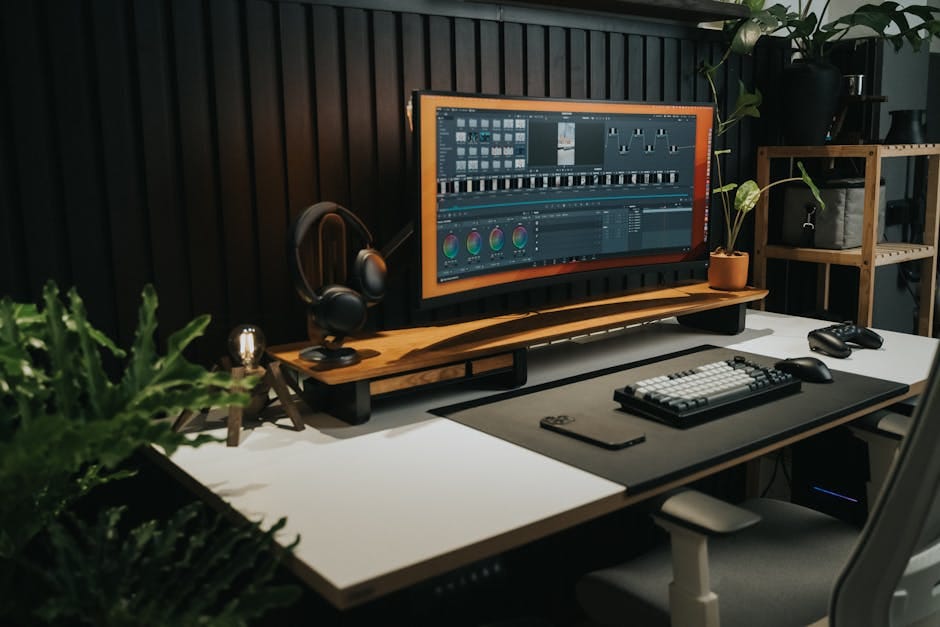
There's a narrative in monitor reviews that bigger is always better. 38-inch ultrawide. 49-inch super-ultrawide. 45-inch curved gaming OLED. All of them dominant in reviews, cinematic in product videos, and impractical on most real desks. The 34-inch ultrawide, in the meantime, sits quietly as the monitor most people should actually buy.
I've owned a 27-inch 4K, a 32-inch 4K, a 38-inch ultrawide, and a 49-inch super-ultrawide. The 34-inch 3440x1440 that sits on my desk right now is the one I'd replace first if it broke. The others all had specific problems. This one fixes the right ones without creating new ones.
Why 34-inch ultrawide specifically
The 34-inch 3440x1440 resolution is roughly the same vertical height as a 27-inch 2560x1440 monitor. So you're not losing vertical space — you're adding horizontal. That single fact is why it works for productivity when larger ultrawides start to fail.
A 38-inch ultrawide is taller. You end up looking up at the top of windows. A 49-inch super-ultrawide is so wide you can't see the edges without turning your head. Both of these have use cases, but neither is ergonomically optimal for reading spreadsheets and writing documents.
The 34-inch ultrawide lets you tile three applications side by side comfortably. Slack + code editor + browser. Email + document + reference. Two browser windows + terminal. The horizontal real estate fundamentally changes multitasking.
The monitors worth buying
Dell U3425WE — $899
The professional's default. 34-inch curved ultrawide, 3440x1440, 120Hz, USB-C with 90W power delivery, built-in KVM switch. Factory-calibrated for Delta E less than 2 — meaning colors are accurate out of the box.
Dell's UltraSharp line has been the office monitor of choice for twenty years because it focuses on what matters: color accuracy, adjustable stand, reliable connectivity, no gaming gimmicks. The U3425WE adds the USB-C power delivery that replaces a second cable for laptop users.
For anyone whose primary monitor is for work, this is the pick. No questions.
LG 34WQ75C-B — $599
The budget pick at the same 34-inch 3440x1440 spec. 60Hz rather than 120Hz, so not ideal for gaming. But for productivity work, 60Hz is perfectly fine — you're looking at static text and images, not high-refresh content.
90W USB-C power delivery included. Adjustable stand. Reasonable color accuracy (slightly worse than Dell's factory calibration, but still fine for non-color-critical work). Skip if you game; buy if you exclusively work.
LG 34GN850-B — $799
The gaming-capable ultrawide that's still great for work. 160Hz native, 1ms response time, Nano IPS panel for color accuracy, G-Sync compatible. For anyone who wants one monitor that handles both productivity and serious gaming, this is it.
No USB-C power delivery, though. You'll need to connect the laptop with a separate cable for display and power.
Samsung Odyssey OLED G8 — $1,299
For those with $1,300 to spend, the OLED ultrawide is a genuinely different experience. Pure black in a dim room. Zero motion blur. 175Hz. The panel is beautiful.
But: OLEDs on monitors in 2026 still have burn-in risk. If you leave static elements (dock, taskbar, window borders) on screen for 8+ hours daily, the panel will develop uneven wear over 2-3 years. The warranty doesn't cover this.
For a pure entertainment monitor, the G8 is stunning. For a work monitor where you'll have Slack open 8 hours a day, stick with IPS or VA panels.
The curve question
34-inch ultrawides are usually curved (1800R or 1500R radius). This is the right choice at this size. The curve means the edges of the screen are closer to your viewing distance, so text stays readable at the far left and right without looking distorted.
Flat 34-inch ultrawides exist but lose some usable real estate because the edges feel further away. The curved version is the standard for good reason.
Don't worry about the curve affecting design work or photo editing. Anyone who says they can't edit on a curved monitor is either working at extreme angles that aren't typical for screen work, or overestimating the effect of the curvature.
The USB-C power delivery trap
Monitors marketed as "USB-C with PD" need closer inspection. The wattage matters. A modern MacBook Pro needs at least 90W to charge properly under load. If the monitor outputs only 65W, your laptop battery will slowly drain even while plugged in during demanding work.
Target 90W PD minimum. 100W is better. Some monitors claim USB-C with only 65W or 75W output, which is fine for a MacBook Air but insufficient for Pro models.
The Dell U3425WE outputs 90W. The LG 34WQ75C-B outputs 90W. Both handle any MacBook Pro or premium Windows laptop without compromise.
What to skip
Skip 1080p ultrawides. 2560x1080 resolution is too low for the pixel density of a 34-inch screen. Text looks fuzzy. Any savings aren't worth it.
Skip 38-inch ultrawides unless you have a deep desk and want the extra vertical space. The jump from 34 to 38 adds height more than width, which isn't the point of ultrawide.
Skip 49-inch super-ultrawides for anything but specific workflows (video timeline work, extensive multi-window development). The monitor is too wide to see comfortably at normal desk distance.
Skip OLED ultrawides for pure work use, as noted above. The burn-in risk isn't theoretical.
Skip ultrawides without height-adjustable stands. You cannot mount them at the correct height for your eyes without adjustment, and most third-party monitor arms don't support 34-inch ultrawides well.
The setup that makes ultrawides work
Window management software
An ultrawide without window tiling software is a waste of screen space. Windows has PowerToys' FancyZones (free). Mac has Rectangle or Raycast's window management. Either lets you define zones on the monitor and drag windows to snap to them.
My setup: three columns, each one-third of the screen width. Drag a window to the left edge, it fills the left third. Drag to the right, fills the right third. Middle for focused work. This single feature is what makes the ultrawide productive instead of distracting.
Monitor arm
The stands on most 34-inch ultrawides are adequate but not great. A monitor arm (Jarvis for $199, Ergotron LX at $249) lets you reclaim the desk space under the monitor and adjust positioning more freely.
Especially useful if you have a standing desk — you can tilt the monitor slightly as your position changes through the day.
Keyboard and mouse placement
With a 34-inch screen in front of you, your keyboard and mouse need to be more central than with a 27-inch monitor. The mouse reach to the far corners of the screen gets longer. A mouse with higher DPI (logitech MX Master 3S at 8000 DPI is plenty) helps reduce the physical distance needed.
The single-cable dream
With a USB-C monitor like the Dell U3425WE, the laptop setup becomes: one USB-C cable from laptop to monitor. The monitor provides display, laptop charging, USB hub (for keyboard, mouse, webcam), and Ethernet. Close the laptop at the end of the day, unplug one cable, walk away.
This is the functional advantage of USB-C ultrawides over HDMI + separate charger setups. Not flashy, but reduces friction every morning and evening.
The comparison worth making
A 34-inch ultrawide costs about the same as two 27-inch 4K monitors. Which is better?
For multitasking with three+ applications: the ultrawide wins. Seamless workflow across one display, no bezel interruption.
For pixel density and image quality in individual apps: two 4K monitors win. 27-inch 4K is 163 PPI; 34-inch 3440x1440 is 109 PPI.
For video calls that want the camera centered: the ultrawide wins. The bezel between two monitors is where your webcam sits awkwardly.
For gaming: the ultrawide wins. Games support ultrawide aspect ratios well in 2026; switching between two monitors for gaming is awkward.
For most office workers, the ultrawide is the better choice. For graphic designers or anyone who works heavily in single applications, dual 4K might edge it.
A word on 5K and 6K ultrawides
LG sells a 5K2K 40-inch ultrawide at $1,400. It's impressive, but the pixel density at 40 inches is still similar to 27-inch 5K (around 140 PPI). For most work, the 3440x1440 at 34 inches is the same practical experience at two-thirds the price.
If you do color-critical work, the 5K2K panel may justify the premium for its P3 color coverage. For most office and development work, the extra pixels don't change the daily experience.
The 34-inch 3440x1440 ultrawide has quietly become the standard productivity display for serious office workers. It's the Honda Accord of monitors — unexciting in its own right, exactly the right choice for most people, and nobody who owns one regrets it. Buy the Dell if you work hard, the LG if you're on a budget, and get on with your work. The monitor debates end when you have one on your desk.