The USB-C Hub You Actually Need (Not the One You'll Buy)
USB-C hubs look similar. They're not. Here's how to pick one that actually works instead of one that creates new problems.
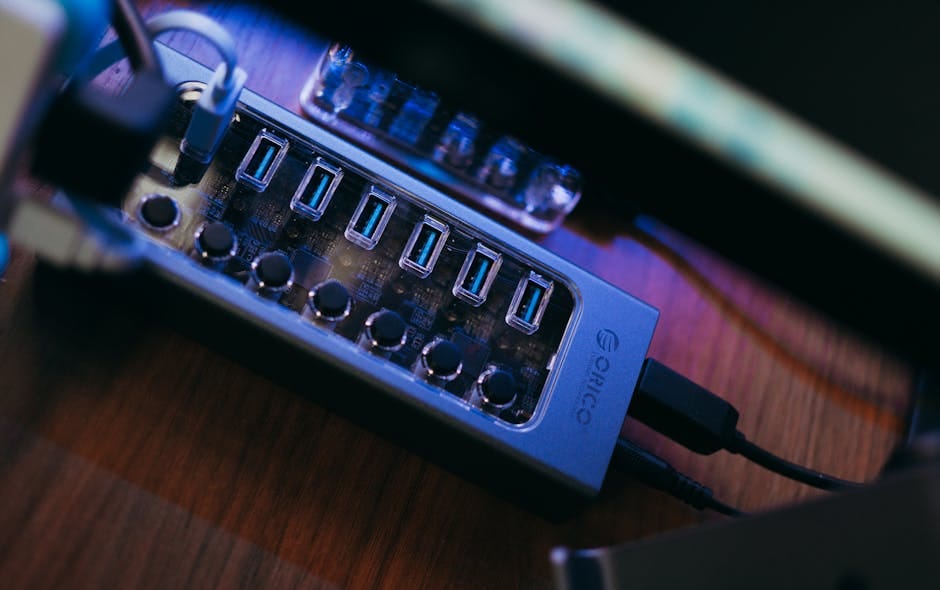
Walk into any electronics store and you'll see fifteen USB-C hubs, all the same size, all claiming to do the same things. 7-in-1! 10-in-1! 4K HDMI! Gigabit Ethernet! The specifications sheet sounds identical across the aisle. The actual products vary enormously in what they deliver.
I've tested more USB-C hubs than I care to admit — from $15 Amazon specials to $150 premium models. Here's the practical guide: what actually matters, which hubs deliver, and how to avoid the ones that look great until you try to use them.
The USB-C hub problem
A USB-C hub plugs into a single USB-C port on your laptop and provides multiple connection options. Good hubs do this transparently. Bad hubs introduce problems that weren't there before: slow display output, unreliable peripherals, or overheating.
The physical design is almost identical across all hubs — a small box with USB-C input and various ports on the sides. The internals vary wildly. Chip quality, power handling, and display processing differ significantly.
What to actually look for
HDMI or DisplayPort version
HDMI 2.0 handles 4K at 30Hz — fine for static displays, unacceptable for anything with motion.
HDMI 2.1 handles 4K at 60Hz — the minimum for usable work. Most quality hubs in 2026 support this.
4K at 120Hz requires special bandwidth handling. Only premium hubs with DisplayLink or Thunderbolt support handle this.
Check the spec sheet carefully. "4K HDMI" without specifying refresh rate usually means 4K at 30Hz.
Power passthrough wattage
If you plan to charge your laptop through the hub, the hub needs adequate power input. Most hubs support 100W or less passthrough — meaning a 140W MacBook Pro will charge slowly.
For MacBook Air or Windows ultrabooks: 60W passthrough is sufficient.
For MacBook Pro 14 or 16: 100W passthrough is the minimum.
Some hubs don't support power passthrough at all, meaning you connect the charger separately. This reduces the hub to a port expander.
USB speeds
USB 3.0 (5 Gbps) is the baseline. USB 3.2 Gen 2 (10 Gbps) is faster. USB-A ports on cheap hubs are often USB 2.0 (480 Mbps), which is slow for external drives.
For day-to-day use (keyboard, mouse, USB drive), all USB speeds work. For external SSDs, SD card readers, or video capture, USB 3.0 minimum matters.
The hubs worth buying
Anker 555 USB-C Hub (8-in-1) — $49
The best budget-to-midrange hub. 4K/60Hz HDMI, Ethernet, SD/microSD reader, USB-A 3.0 ports, USB-C data port, and 100W power passthrough. Aluminum construction that dissipates heat well.
This is the hub I'd recommend to most people. Covers 95% of use cases. Reliable under sustained use. Good warranty.
Anker 565 USB-C Hub (11-in-1) — $99
More ports for more demanding setups. Dual HDMI (4K/60Hz each) for dual display use on compatible laptops. 100W power passthrough. Full SD reader slot.
For anyone whose laptop supports dual HDMI through a single USB-C port, this hub enables that capability.
Satechi Pro Hub Mini — $79
The slimmest quality hub. Built into a MacBook-matching aluminum case. Click-in design that stays flush with the laptop.
Specifically designed for laptops with two adjacent USB-C ports (both sides of a MacBook Pro). Plugs into one port, occupies the other slot, provides ports.
Premium looking, less functional than a separated hub with a cable. Good for minimalist setups.
UGreen Nexus 10-in-1 — $59
Comprehensive port selection at budget price. HDMI 2.0 (4K/30Hz), Gigabit Ethernet, 3x USB 3.0, SD/microSD, VGA (for older displays), audio jack, USB-C power delivery.
The inclusion of VGA makes this useful for older presentation setups or projector compatibility.
Avoid: generic Amazon hubs under $30
These hubs use cheap controller chips that run hot, drop connections, and fail within a year. The savings aren't real — you'll buy another hub to replace it.
If you've been burned by a $20 hub, the $49 Anker is worth the premium. The quality difference is immediately apparent.
Use case matching
Casual traveler (occasional laptop use)
Anker 555 USB-C Hub. Small enough to fit in a pocket, covers major use cases.
Daily home office with one external monitor
Anker 555 works. For a permanent desk setup with more devices, a proper docking station (covered in a separate article) is better.
Someone who presents often
UGreen Nexus with VGA support handles older conference room projectors. Most modern rooms use HDMI, but legacy setups still exist.
Someone with dual monitors on one USB-C laptop
Anker 565 for dual HDMI. Verify your laptop supports dual display through a single USB-C port — not all laptops do.
The thermal issue
USB-C hubs get hot during use. Cheap hubs reach 70°C+ (158°F+) under sustained HDMI and data load. Good hubs stay below 50°C (122°F).
Why it matters: heat degrades components over time. A hub that runs hot will have reduced reliability after 6-12 months. A hub that stays cool can last 5+ years.
Aluminum-cased hubs (Anker, Satechi, UGreen) dissipate heat better than plastic-cased alternatives.
The multi-port compromise
A 10-in-1 or 11-in-1 hub distributes bandwidth across multiple ports. A 4K display + Ethernet + USB 3.0 drive running simultaneously can exceed the hub's total bandwidth, causing one or more to slow down.
For simultaneous use of many high-bandwidth peripherals, a Thunderbolt 4 dock is better. A USB-C hub is fine for "one or two active devices at a time" scenarios.
What the laptop supports
Your laptop's USB-C port capabilities determine what any hub can do. Check the spec sheet:
- USB 3.2 Gen 1: 5 Gbps, HDMI output via DisplayPort Alt-Mode.
- USB 3.2 Gen 2: 10 Gbps, single 4K display.
- Thunderbolt 3 or 4: 40 Gbps, dual 4K displays, full peripheral power.
A Thunderbolt 4 dock on a USB 3.2 laptop only delivers USB 3.2 speeds. A USB-C hub on a Thunderbolt laptop works fine but doesn't use the full capability.
Don't overpay for hub capabilities your laptop can't use. Conversely, don't undershoot the hub when your laptop has more capability than you're using.
The cable matters too
Most USB-C hubs have a fixed short cable (6-12 inches). Some have detachable cables. For the fixed-cable variety, the cable quality is part of what determines hub quality.
Cheap cables with fixed attachments fail at the connector. The hub still works but the cable becomes the weak point.
Quality hubs have well-strain-relieved cable connections and higher-gauge wiring.
Alternatives to a USB-C hub
Thunderbolt 4 dock
For a permanent desk setup, a Thunderbolt 4 dock (CalDigit TS4, OWC Thunderbolt Hub) is better than a USB-C hub. More ports, more bandwidth, more reliability. Costs $200-400.
Monitor with USB hub built in
Many modern monitors (Dell U3425WE, LG Ergo) have USB hub capabilities built in. Plug the USB-C cable from your laptop to the monitor, and the monitor provides additional ports plus display.
Eliminates the separate hub entirely for desk setups. Worth considering when buying a new monitor.
Laptop with more ports
The Framework Laptop 13 lets you configure your own ports — HDMI, Ethernet, USB-A, full SD card reader as native ports. ThinkPads retain more legacy ports than most ultrabooks.
If you're due for a new laptop and hate dongle life, consider a machine with more built-in ports.
What to skip
Skip any USB-C hub with built-in wireless connectivity (the "all-in-one" hubs that include Wi-Fi or Bluetooth). These combine too many functions and tend to fail at one.
Skip hubs with built-in rechargeable batteries. The battery is a liability that adds weight and heat. If you need portable power, carry a separate power bank.
Skip hubs claiming "Thunderbolt speeds" unless they specifically state "Thunderbolt 4" in the model name. Thunderbolt is a specific standard with certification; claims of "Thunderbolt-compatible" on a USB-C hub usually mean nothing.
Skip hubs under $20. The economics don't work for quality components at that price.
The hub you'll use for three years
Buy the Anker 555 USB-C Hub at $49. Use it for three years. Forget about USB-C hubs.
If your use case evolves — you add dual monitors, you start needing Thunderbolt speed — upgrade to a Thunderbolt dock at that point.
Most people overthink hub purchases, read dozens of reviews, buy the wrong thing, and end up returning it. The category doesn't require this much research. Get the Anker, don't worry about it. The difference between the best $49 hub and the best $79 hub is small compared to the difference between any of them and the $15 no-name alternative.
Your laptop is the tool. The hub is the adapter that connects it to everything else. Spend $50 on this once, get on with your actual work. That's the practical answer to the USB-C hub question.