Portable SSD Buyer's Guide 2026: Why the Speed on the Box Rarely Matches Real-World Transfers
The MB/s number on the box is a lab best-case. Here's why your real transfers run slower, and which portable SSD actually fits your workload.
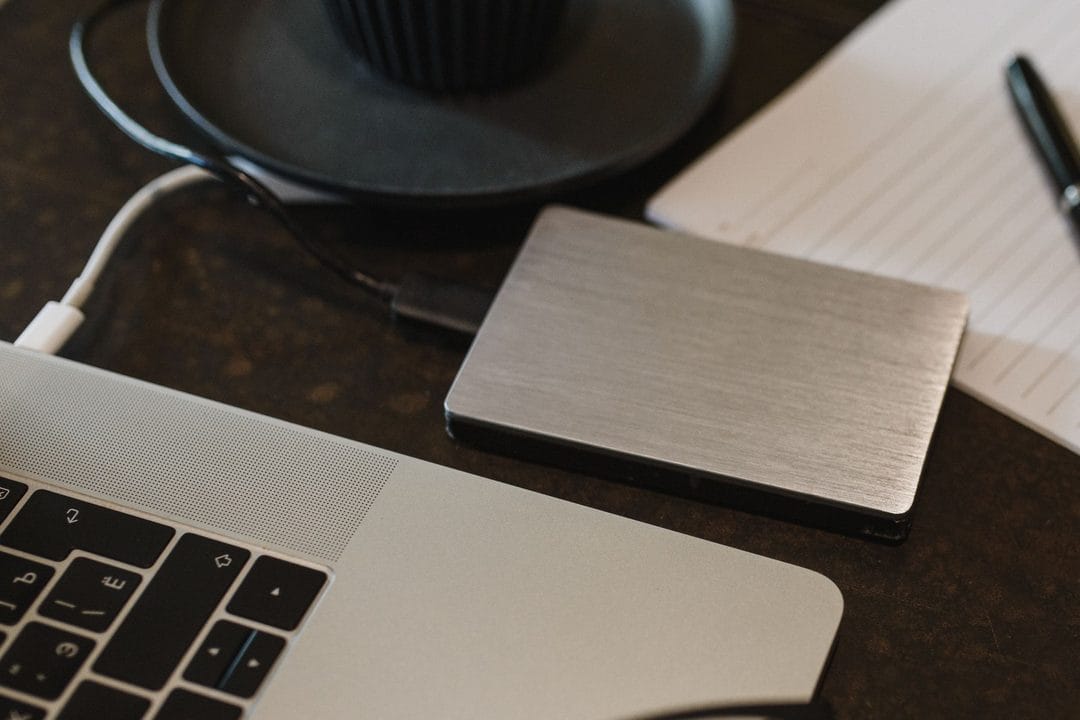
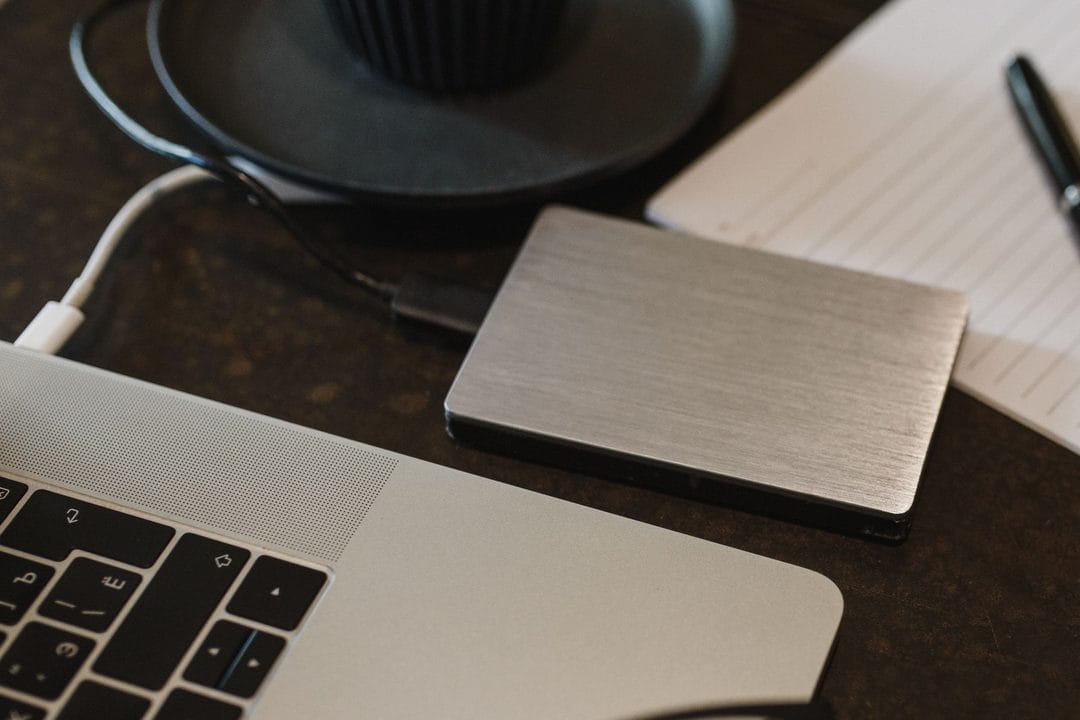
Buy a portable SSD advertised at 2,000 MB/s, plug it into your laptop, and drag over a folder of vacation photos. The transfer crawls along at a fraction of that number, and you're left wondering if you bought a dud. You didn't — you bought a drive that was benchmarked under conditions your actual USB port, your actual cable, and your actual files can't replicate. The number on the box is real. It's just measured in a lab, not in your backpack.
The benchmark number is a best case, not a typical case
Manufacturers test sequential read speeds using large, single files — think a 20GB video export — moved through the fastest interface the drive supports, with a cable rated for full bandwidth. Copy a folder of 4,000 small RAW photos instead, and you're now bottlenecked by random read/write performance, which can run 5–10x slower than the sequential number printed on the packaging. This isn't false advertising; it's an industry-standard test method that every brand uses, from Samsung to SanDisk to Crucial. The problem is nobody tells you which number applies to your actual workload.
Video editors moving single large clips will see numbers close to the spec sheet. Photographers, developers, and anyone syncing project folders full of small files will not — and no amount of returning the drive and buying a "faster" one fixes that, because the bottleneck is the file pattern, not the drive's ceiling.
Your cable and port matter more than the drive spec
A USB-C cable is not automatically a USB-C cable that supports your drive's speed. Most cables bundled with phone chargers are rated for 480 Mbps — USB 2.0 speed — even though they physically fit a USB 3.2 port. Plug a 2,000 MB/s-rated SSD into one of these and you'll get roughly 60 MB/s, a fifteenth of the rated speed, with zero error message telling you why. Samsung's T7 and SanDisk's Extreme Pro both ship with a proper cable in the box specifically because this mismatch is the single most common support complaint for both product lines.
Check the port too, not just the cable. A laptop's USB-C ports are frequently split between a Thunderbolt/USB4 controller and a slower USB 3.0-over-C port on the same machine — Dell and Lenovo both do this on several budget and mid-range lines to save cost, without labeling which port is which anywhere on the chassis. If your transfer speed looks wrong, try the other port before assuming the drive is faulty.
NVMe vs SATA-based portables — the difference that actually shows up
Under $80, most portable SSDs use a SATA-based controller internally, which caps real-world throughput around 500–550 MB/s regardless of what USB standard the housing supports. Above that price point, drives like the Samsung T9 or Crucial X10 Pro use NVMe controllers capable of 2,000+ MB/s — but only if your computer's port and cable can actually feed that bandwidth. Buying an NVMe-based portable and running it through an old USB 3.0 port is like buying premium fuel for a car that only takes regular: you paid for a spec you can't access.
For most people doing document backups, photo libraries under 500GB, and general file storage, a SATA-based drive in the $50–70 range does the job and the extra speed of an NVMe model goes largely unused. Video editors working with 4K or 6K footage, or anyone regularly moving 50GB+ files, should pay the premium — that's the one group who will actually feel the difference in daily use.
Heat throttling is the failure mode nobody mentions on the spec sheet
Compact NVMe portables pack a lot of controller into a very small aluminum or plastic shell, and sustained transfers generate real heat with nowhere to go. Run a continuous 100GB+ transfer and you'll often see speeds drop 30–40% partway through as thermal throttling kicks in — a known characteristic of small-form-factor drives from nearly every brand, not a defect specific to one model. Drives with an aluminum unibody shell, like the Samsung T7 Shield, dissipate heat noticeably better than the plastic-bodied budget alternatives, which is worth the extra $10–15 if you regularly move large batches.
There's a workaround worth knowing if you're stuck with a plastic-shelled drive and a big transfer: break the job into chunks of 20–30GB with a short pause between them rather than one continuous multi-hour copy. It's not elegant, but it lets the controller recover between bursts and avoids the steepest part of the throttling curve.
Hardware encryption is worth paying for if the drive ever leaves your house
Most budget portable SSDs skip hardware-level encryption entirely, relying on whatever software encryption you bother to set up yourself — which, realistically, most people never do. Drives like the Samsung T7 and the WD My Passport line build AES 256-bit encryption directly into the controller, protected by a password set once through a companion app, with essentially zero performance penalty because the encryption happens in dedicated silicon rather than software running on your CPU. If you're carrying client files, tax documents, or anything you'd genuinely mind a stranger reading, this is the one spec worth paying an extra $10–15 for over an otherwise identical unencrypted model.
Skip the drives that advertise "military-grade encryption" without specifying the standard — that phrase shows up on cheap Amazon-brand drives as a marketing label with no actual AES implementation behind it. If the product page doesn't say AES-256 explicitly, assume there's nothing meaningfully protecting the drive if it's lost or stolen.
Drag-and-drop backups quietly break more often than people realize
Dragging a folder from your computer to an external SSD looks like a backup, but it isn't a verified one — there's no checksum confirming every byte copied correctly, and a dropped connection mid-transfer can leave you with silently corrupted files you won't discover until you actually need them. Dedicated backup software like Macrium Reflect (Windows) or Carbon Copy Cloner (Mac) verifies each file after copying and will flag errors immediately rather than leaving you to find out during a restore, which is the worst possible moment to discover a backup failed.
This matters more than it sounds like it should, because portable SSDs fail too — they're just less likely to fail than a drag-and-drop transfer to fail silently. Keep at least one copy of anything irreplaceable somewhere other than the portable drive itself, whether that's cloud storage or a second physical drive. A single point of failure is still a single point of failure even when the failure point costs $150 and fits in your pocket.
What to actually buy, by use case
For general backup and document storage under 500GB: SanDisk's Extreme Portable ($55–70 for 1TB) or Crucial's X6 covers it without overpaying for speed you won't use. For photographers and anyone syncing large mixed-file libraries: step up to an NVMe drive with a metal shell — Samsung T9 or Crucial X10 Pro — where the random-access performance actually matters day to day. For video editors cutting 4K/6K footage directly off the drive: don't go cheap here, get the Samsung T9 or a Thunderbolt-specific drive like the OWC Envoy Pro, and pair it with the cable it ships with, not a spare one from a drawer.
One habit worth building regardless of which drive you buy: check the actual transfer speed the first week you own it, with your real files, not a benchmark app. If it's dramatically below spec, swap the cable before you swap the drive — that single step resolves more "broken" SSD complaints than any other troubleshooting move, and it costs nothing but five minutes with a cable you probably already own.